ImageDB: A Searchable DB of ArXiv Paper Figures
In this article, I’ll walk you through the development stages of imagedb.eu, a searchable database of millions of figures from ArXiv papers, and the cost of its deployment.
You’ll learn how to manipulate PDFs, and estimate the cost of deploying a web app serving millions of images.
Introduction
ImageDB is a simple web app built for a simple purpose: finding images extracted from ArXiv papers.
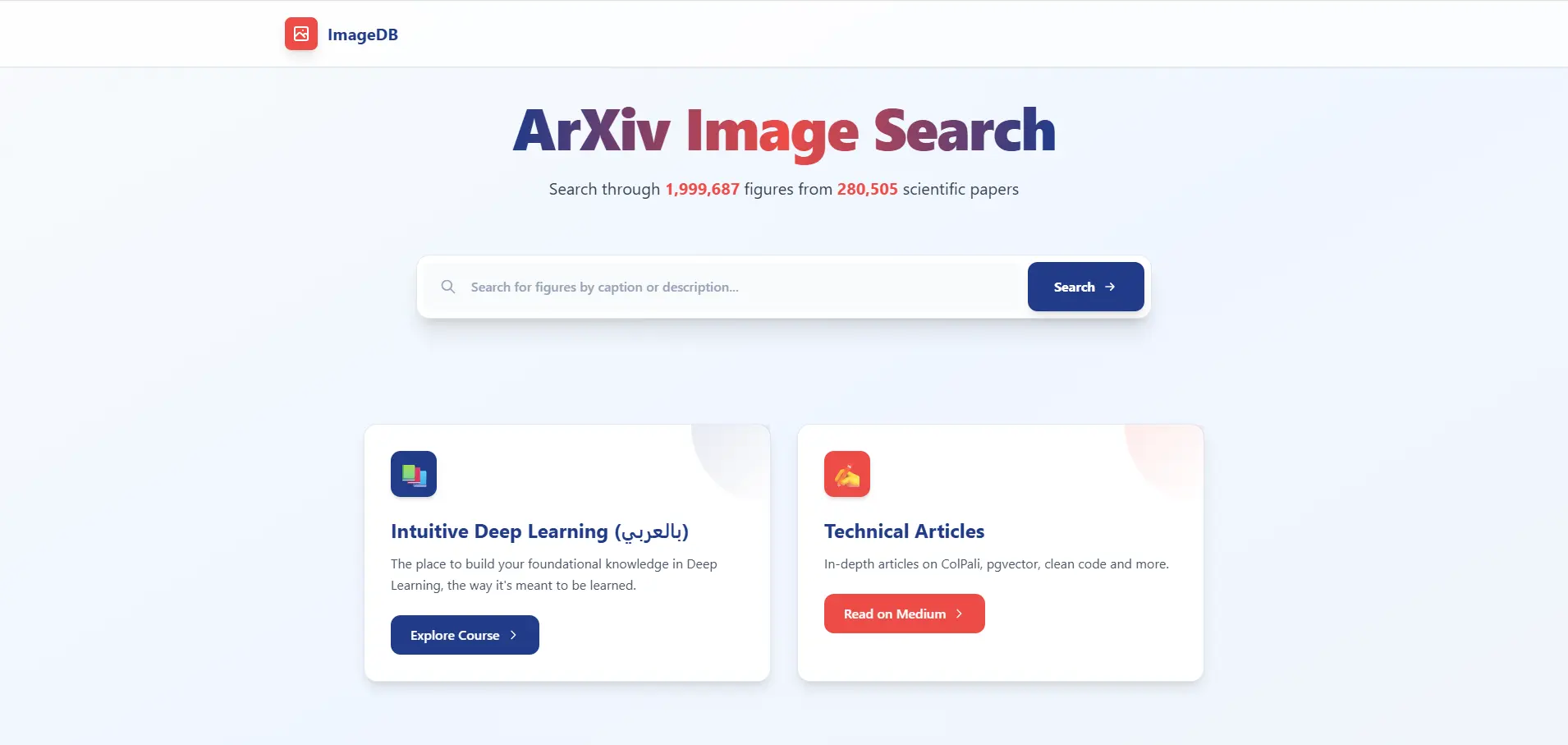
The idea started when I was preparing a technical presentation and needed some visuals. My go-to approach is to use images from papers I’ve read. I asked myself: why isn’t there a searchable database of ArXiv paper figures? So I built one.
The steps are straightforward:
- Fetch ArXiv papers.
- Extract images and captions from each paper.
- Feed a database to search images by matching their captions.
Let’s start with fetching ArXiv data.
ArXiv Database
There are millions of ArXiv papers, and thankfully they’re available for fetching from Amazon S3, so there’s no need for scraping.
The papers are stored in tar files (~500MB each), and each month contains hundreds of tar files (~100GB). All the metadata is present in arXiv_pdf_manifest.xml.
import boto3

aws_bucket_name = "arxiv"
s3_client = boto3.client(
          "s3",
          region_name="us-east-1",
          aws_access_key_id=os.getenv("AWS_ACCESS_KEY_ID"),
          aws_secret_access_key=os.getenv("AWS_SECRET_ACCESS_KEY"),
      )
manifest_key = "pdf/arXiv_pdf_manifest.xml"
response = s3_client.get_object(
            Bucket=aws_bucket_name, Key=manifest_key, RequestPayer="requester"
        )
manifest_content = response["Body"].read().decode("utf-8")
The manifest file has the following structure:
<?xml version='1.0' standalone='yes'?>
<arXivPDF>
  <file>
    <content_md5sum>1852974c8570cdafd91522ee93719ee5</content_md5sum>
    <filename>pdf/arXiv_pdf_0001_001.tar</filename>
    <first_item>astro-ph0001001</first_item>
    <last_item>hep-th0001208</last_item>
    <md5sum>4b5eeb603fd68bb05b9dd3341e9067fb</md5sum>
    <num_items>1751</num_items>
    <seq_num>1</seq_num>
    <size>526080000</size>
    <timestamp>2009-12-23 14:41:24</timestamp>
    <yymm>0001</yymm>
  </file>
  <file>
    <content_md5sum>650da80f3bcd1f4cd3d994b572ecdbb9</content_md5sum>
    <filename>pdf/arXiv_pdf_0001_002.tar</filename>
    <first_item>hep-th0001209</first_item>
    <last_item>quant-ph0001119</last_item>
    <md5sum>eedc2d7c09cf11fda188d8600c966104</md5sum>
    <num_items>565</num_items>
    <seq_num>2</seq_num>
    <size>139560960</size>
    <timestamp>2009-12-23 14:42:52</timestamp>
    <yymm>0001</yymm>
  </file>
  ...
</arXivPDF>
The most important fields are:
filename: the name of the tar file to fetch.num_items: the number of papers in the tar.yymm: the corresponding year and month of the papers (e.g.,yymm=0001means January 2000).
Once we have the manifest, we can download the actual tar file as follows:
response = s3_client.get_object(
           Bucket=aws_bucket_name, Key=tar_filename, RequestPayer="requester"
            )
tar_bytes = response["Body"].read()
PDF Manipulation
Now that we have the tar file, we can process the papers (in PDF format) to extract the images and their associated captions.
Note that there’s the option of downloading the source files (mainly in LaTeX format) instead of the PDFs. This could make the task easier, as we have everything in
\includegraphics. However, the LaTeX source is not homogeneous, and you need to decide how to render multiple images.
Before starting, we should establish some assumptions:
- We assume that an image and its caption are always on the same page.
- A caption is always below the image.
- An image can be associated with one caption or no caption.
- Multiple images can have the same caption.
These assumptions aren’t 100% correct, but they cover the vast majority of cases. Once we agree on this, let’s see how we can extract text and images from a PDF.
Since the papers are never scanned, we can use the PyMuPDF library to extract different elements.
import pymupdf

document = pymupdf.Document(stream=pdf_bytes)

for page in document.pages():
    # process each page here

    # Extract blocks
    page_dict = page.get_text("dict")

    # Continue processing

document.close()
The get_text("dict") method returns different elements in a PDF page, including text, images, and their corresponding bounding boxes.
{'width': 612.0,
 'height': 792.0,
 'blocks': { 'type': 1,
             'number': 0,
             'bbox': (196.5590057373047, 72.00198364257812, 415.43902587890625, 394.4179992675781),
             'width': 1520,
             'height': 2239,
             'ext': 'png',
             'colorspace': 3,
             'xres': 96,
             'yres': 96,
             'bpc': 8,
             'transform': (218.8800048828125, 0.0, -0.0, 322.416015625, 196.5590057373047, 72.00198364257812),
             'size': 121244,
             'image': byte_content
            },
            {'type': 0,
             'number': 1,
             'flags': 0,
             'bbox': (210.01100158691406, 404.7454528808594, 401.99029541015625, 414.70806884765625),
             'lines': [{'spans': [{'size': 9.962599754333496,
                                   'flags': 4,
                                   'bidi': 0,
                                   'char_flags': 16,
                                   'font': 'NimbusRomNo9L-Regu',
                                   'color': 0,
                                   'alpha': 255,
                                   'ascender': 0.6779999732971191,
                                   'descender': -0.2160000056028366,
                                   'text': 'Figure 1: The Transformer - model architecture.',
                                   'origin': (210.01100158691406, 412.3009948730469),
                                   'bbox': (210.01100158691406, 404.7454528808594, 401.99029541015625, 414.70806884765625)}],
                       'wmode': 0,
                       'dir': (1.0, 0.0),
                       'bbox': (210.01100158691406, 404.7454528808594, 401.99029541015625, 414.70806884765625)}]}
  .
  .
  .
}
Each page_dict contains information about the page size and the blocks inside. A block is either a text paragraph (type=0) or an image (type=1).
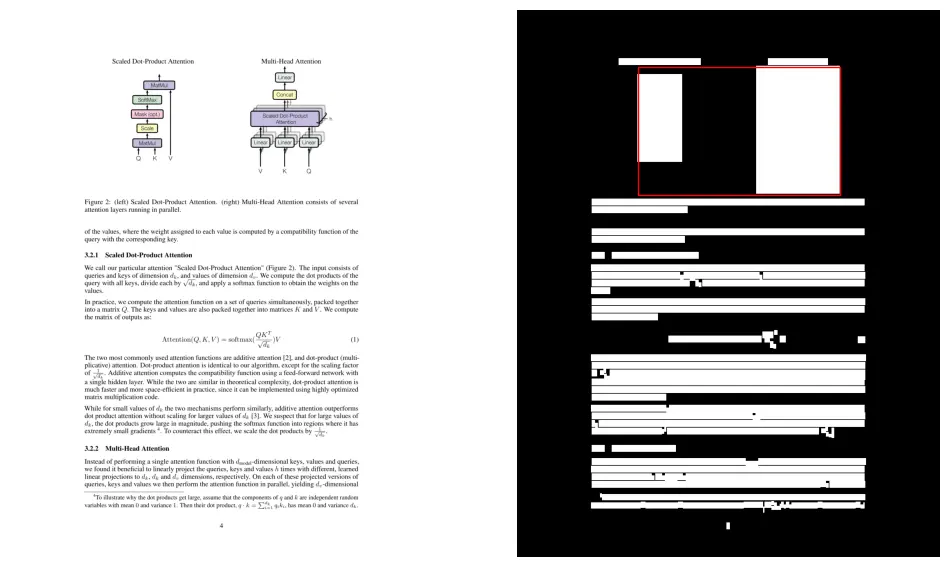
Each text block contains multiple lines and spans. We have the content and bounding boxes of each element. We can create the following mask to visualize the covered elements.
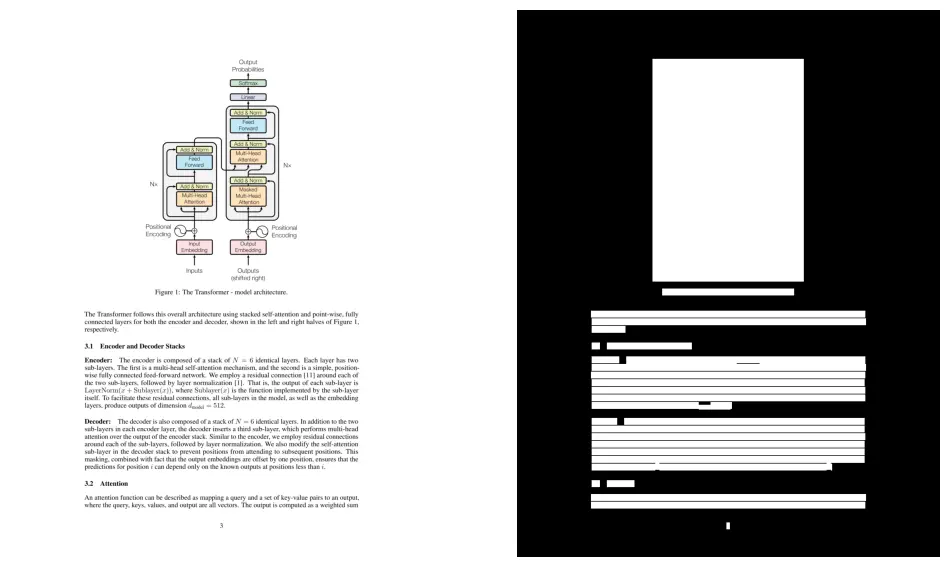
With this approach, we can get all text and images. However, the notion of “image” is different from what we intuitively understand. The images captured with this approach are the images that are inserted as-is.
Imagine you created an image by adding different elements like circles, arrows, boxes, and so on. In this case, the get_dict approach will not work, as we see in the following illustration:
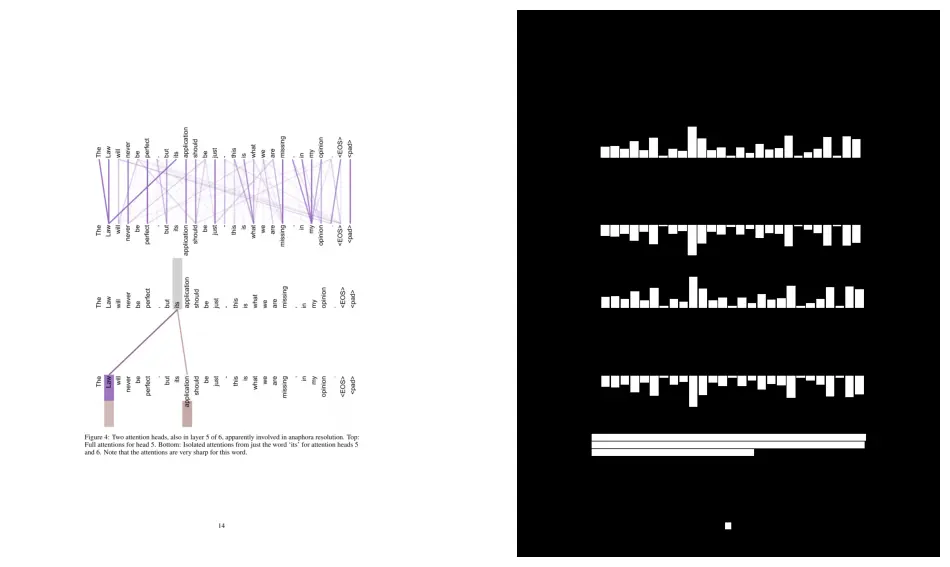
As we can see, we only detected the text and not the visual elements. To solve this problem, we can use the get_drawings method.
drawings = page.get_drawings()
merged_rect = pymupdf.Rect() # create an empty bounding box
for drawing in drawings:
    merged_rect |= drawing["rect"] # merge bounding boxes
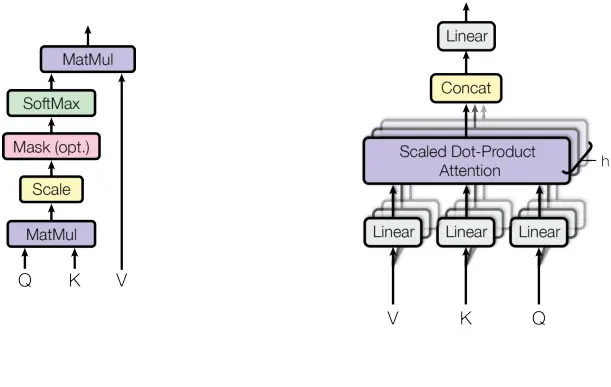
If we merge the bounding boxes of the drawing elements, we can constitute a single box and crop the image as follows:
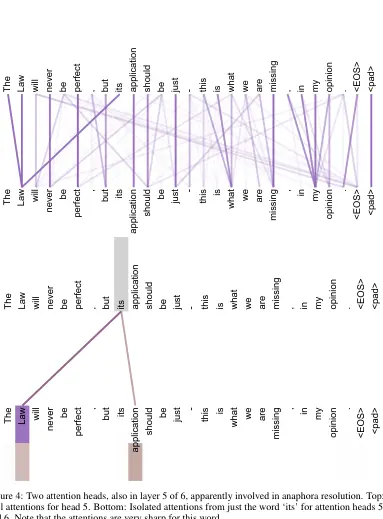
As you can expect, we can’t just merge all drawing elements since we can have multiple drawings per page, so we need to cluster them based on their distance. Also, we’re not guaranteed to have only the exact image we’re looking for (as you can see, part of the caption was included in the image).
One might wonder why we’re not using the
get_imagesmethod. The reason is that it doesn't cover all images, as mentioned in the following GitHub discussion.
Image-Caption Association
Now that we know how to find images and text, the rest is relatively easy.
First, to identify captions, we look for paragraphs that start with specific patterns. Fortunately, almost all ArXiv papers have the same structure, and all captions start with “Figure X:”, “Fig. X:”, “Figure X.”, and so on.
It can happen that an image has no caption (an element is detected as an image, but it’s not intended to be an image — like a code block) or a caption with no image (not really a caption, but a mention of the image like “Fig. 1 shows…”). In those cases, we ignore the element and don’t associate it with anything.
In the remaining cases, we associate one or multiple images to a caption based on their distance.
When multiple images are associated together, we merge their bounding boxes to get a single image.
To extract an image from a page, we can proceed as follows:
import pymupdf
from PIL import Image


rect = pymupdf.Rect(box) # bounding box (x0, y0, x1, y1)
pixmap = page.get_pixmap(clip=rect, dpi=dpi) # depth per inch, e.g. 300
img = Image.frombytes(
    "RGB", (pixmap.width, pixmap.height), pixmap.samples
)
Code Architecture & Deployment
Let’s focus now on the architecture of ImageDB and, more importantly, the deployment decisions that keep costs manageable.
The code is a simple backend using FastAPI and a self-hosted PostgreSQL database, with a frontend using HTML, Tailwind CSS, and vanilla JavaScript. Everything is managed using Docker and Docker Compose.
The data pipeline works as follows:
- Fetch PDFs from Amazon S3 (arXiv’s requester-pays buckets).
- Process and extract images on an OVH VPS.
- Store extracted images on OVH Object Storage.
- Store image paths and captions in PostgreSQL.
Amazon S3 (arXiv PDFs) → OVH VPS (Processing) → OVH Object Storage (Images)
↓
PostgreSQL (Metadata + Captions)
↓
FastAPI Backend
↓
Users (Search & Download)
The search functionality uses BM25 to match user queries against image captions. A tsvector column is created and automatically updated via a trigger each time we add an entry to the database table.
At the time of writing this post, we have ~2M images from ~280K processed papers — that’s only about one year of papers.
The arXiv data lives in Amazon S3 under requester-pays buckets, meaning you pay to fetch the data. Each month of papers is bundled into multiple ~500MB tar files, and the total corpus runs into terabytes.
The cost structure is tricky:
- Data transfer from S3 to the public internet costs $0.09/GB.
- Pulling 1TB (~2,000 tar files) would cost $90.
- However, transfers inside the same AWS region are free.
- And the first 100GB per month is free.
My app runs on an OVH VPS for $5/month (8GB RAM, 4 vCPU, 75GB disk). This created a tradeoff: where should I run the data processing?
Option 1: AWS Lambda
Run an AWS Lambda function in the same region as the arXiv S3 buckets:
- ✅ No S3 egress costs (free intra-region transfer)
- ❌ Pay for Lambda compute time
- ❌ Split architecture: backend on OVH, processing on AWS
Option 2: Process on the VPS
Fetch data directly to the OVH VPS and process there:
- ✅ Simple architecture, everything in one place
- ✅ No Lambda costs
- ✅ Full control over processing
- ❌ Pay S3 egress fees ($0.09/GB)
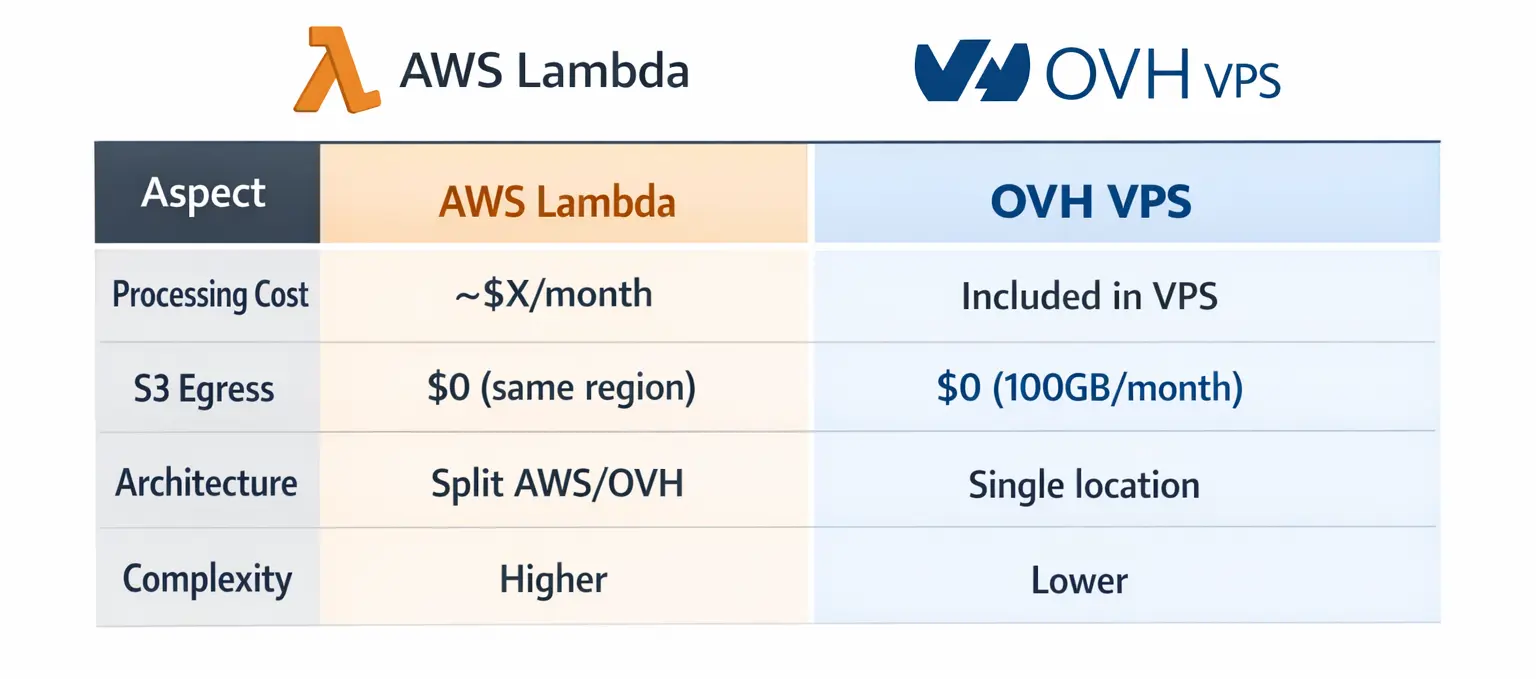
I chose Option 2 for the simpler architecture. I had $100 in AWS credits, so I used it to transfer the initial batch of data to OVH. That $100 allowed me to fetch over 1TB of data — roughly a year and a half of papers.
Going forward, each month adds nearly 100GB of new papers, which I can now fetch for free thanks to Amazon’s monthly 100GB allowance. This means my ongoing S3 egress cost is $0/month as long as I only process new papers each month.
I store the extracted images on OVH Object Storage. The pricing:
- Standard storage: ~$8/TB/month
- Outbound transfer (serving images to users): $0.01/GB
For low traffic, the outbound transfer is negligible, but protecting against scraping is important (using pre-signed URLs). If traffic spikes, I can route image requests through the VPS (which has free outbound traffic), though that consumes more RAM.
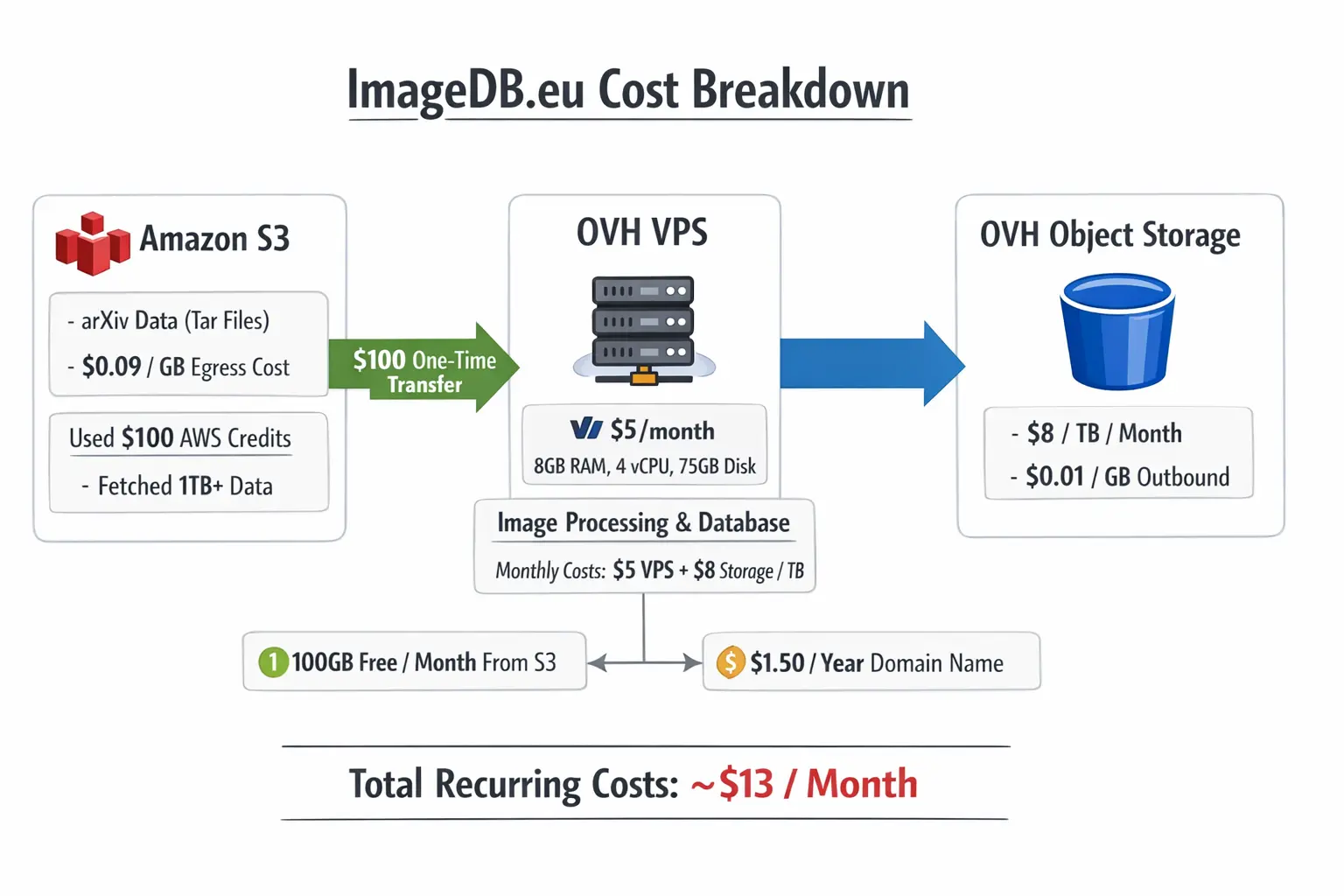
Assuming normal usage and no mass downloads, my recurring costs are:
- OVH VPS: $5/month
- OVH Object Storage (1TB): $8/month
- S3 egress (monthly papers): $0/month (under 100GB free tier)
- Outbound traffic: Variable, but minimal with normal usage
- Total: ~$13/month
One-time costs:
- Initial S3 transfer: $100 (covered by AWS credits)
- Domain: $1.5/year
Here’s a visual summary of the cost comparison:
Improvements
ImageDB is a simple MVP, and there’s plenty of room to make it better.
Current Limitations:
- Some images aren’t extracted well or at all.
- Search only works with exact keywords in English.
- Useless images like curves and charts clutter the results.
- No visual understanding , search relies entirely on caption text.
We could improve the image extraction and search result using:
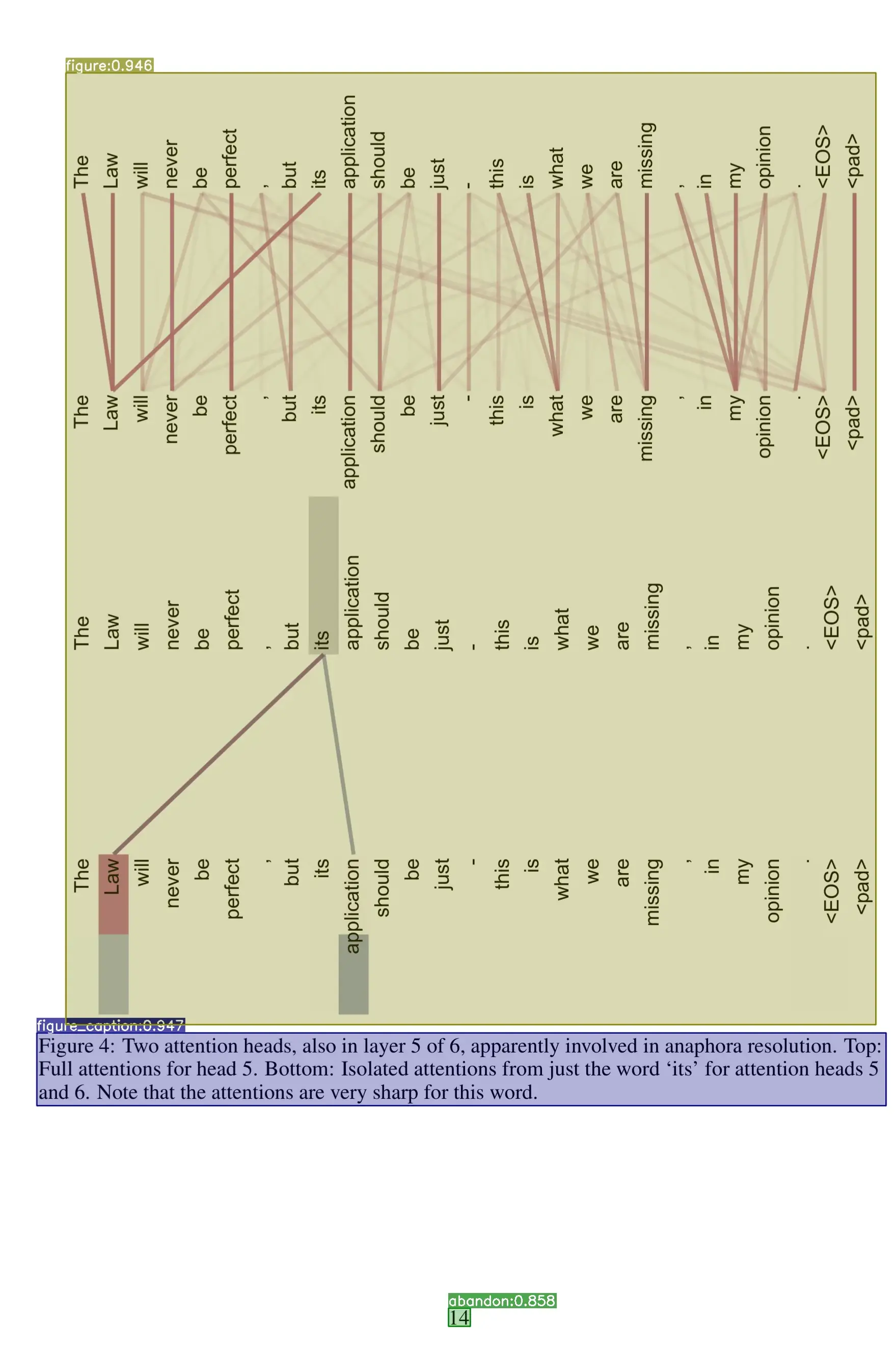
- A YOLO model trained for layout detection.
- Multimodal embedding models like JINA CLIP.
I could train a YOLO nano model with just two classes: images and captions. It would run on CPU and catch the complex figures that are challenging.
In addition, using models like JINA CLIP would make several improvements at once:
- Semantic search: Works across languages, handles typos naturally, finds visually similar images.
- Quality filtering: Zero-shot classification to remove junk images by comparing them to “training curve” or “code screenshot” embeddings.
- Smart organization: Cluster results into categories like “architectures” or “pipelines” instead of showing 100 random matches.
If you’d like to see this project open-sourced or want to collaborate, reach out! I’d love to discuss.
Conclusion
ImageDB is a searchable database of ArXiv paper figures. It contains millions of images and costs only $13/month to be deployed. Don’t hesitate to test it and leave feedback in the comment section! I’d love to hear from you.